Introducing The Editor
The Editor is a Chrome and Edge extension for opening and editing Word, Excel, PowerPoint and LaTeX files right in the browser, without Office. Most formats work entirely offline in the browser, and an optional local Rust backend adds older formats, higher-fidelity output and LaTeX-to-PDF.
The Editor is a browser extension (it shows up as Office Editor) for Chrome and Edge. It opens Word, Excel, PowerPoint and LaTeX documents in a browser tab, lets you edit them, and saves them back as real Office or TeX files. You don't need Microsoft Office, an online account or a cloud upload.
Most formats are read and written entirely inside the browser. An optional local Rust service, office-backend, adds .doc, .rtf and .odt, gives the most faithful .docx/.xlsx/.pptx output and, when a TeX engine is installed, compiles LaTeX to PDF.
The screenshots in this post are from version 0.3.0, loaded unpacked in Chrome with the backend turned off, so they show the built-in engines only.
Four editors in one extension
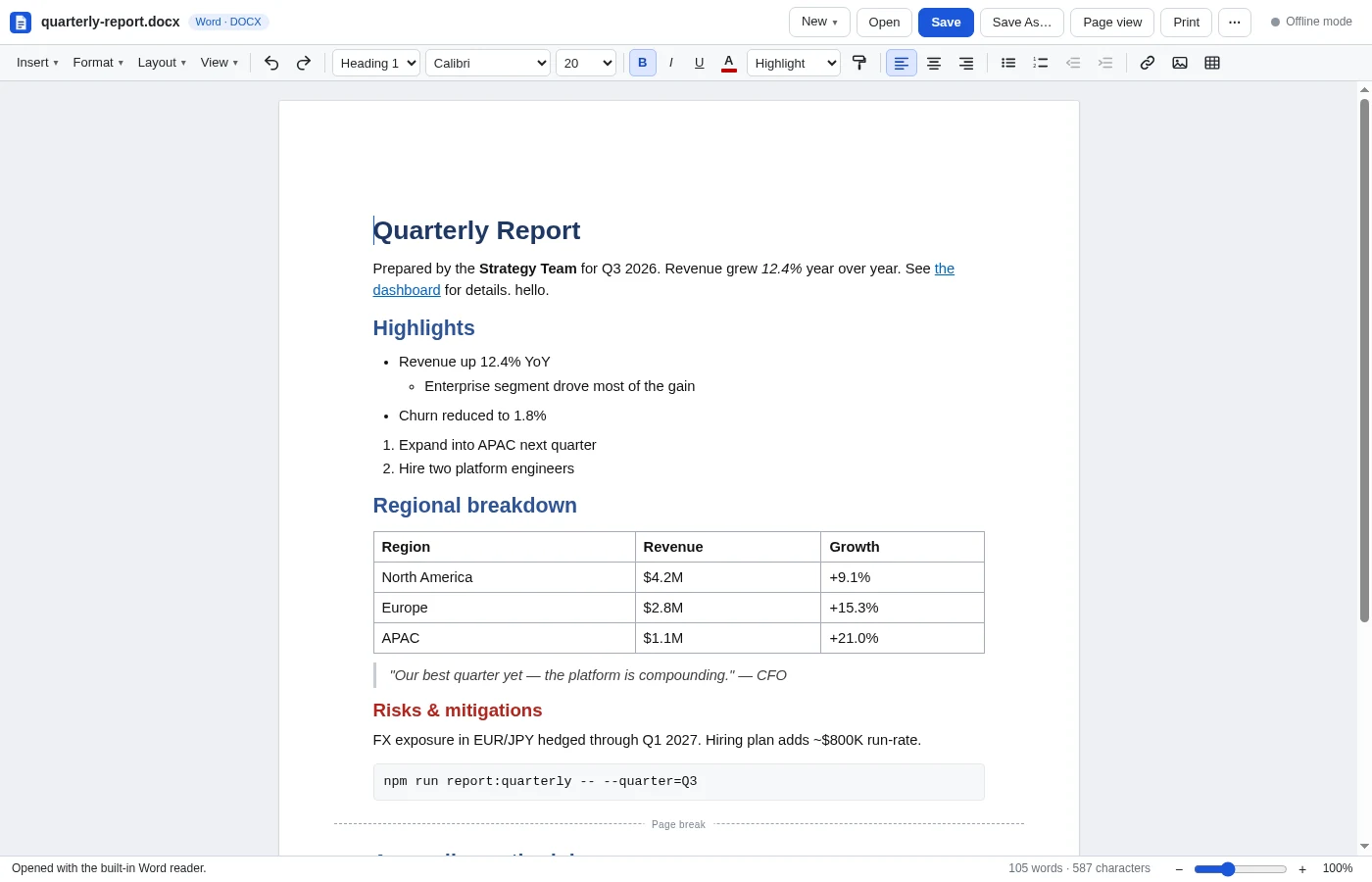
Word. .docx, .md and .txt open and save without the backend. You get headings, bold/italic/underline/strike, super- and subscript, colours, highlighting, fonts, links, alignment, nested lists, tables, images and page breaks. There is also find & replace (Ctrl+F / Ctrl+H), a navigation pane, word count, format painter, page setup, headers and footers with page numbers, and templates for a letter, résumé, report, meeting notes and memo. You can save as .docx, .md, .html, .tex or .txt.
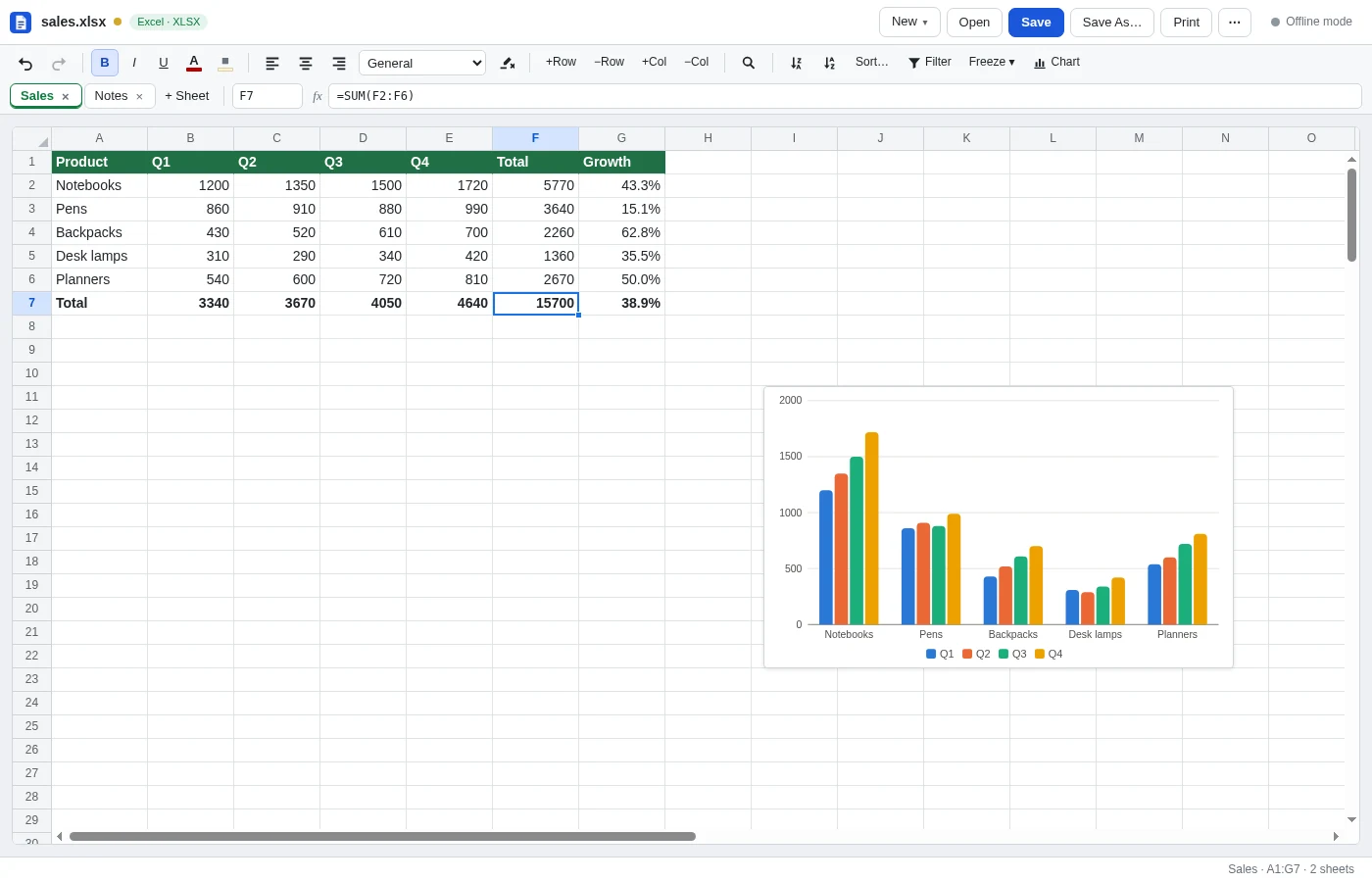
Excel. .xlsx, .xlsm, .xls, .ods, .csv and .tsv open in a multi-sheet grid with a formula bar and name box. A built-in formula engine recalculates as you type, with formula autocomplete and argument hints. The grid supports number and date formats, cell styles, merged cells, sorting (quick and multi-level), AutoFilter drop-downs, freeze panes and a fill handle that continues number, date, weekday and month series. Column, bar, line, pie, scatter and area charts are saved as real Excel charts.
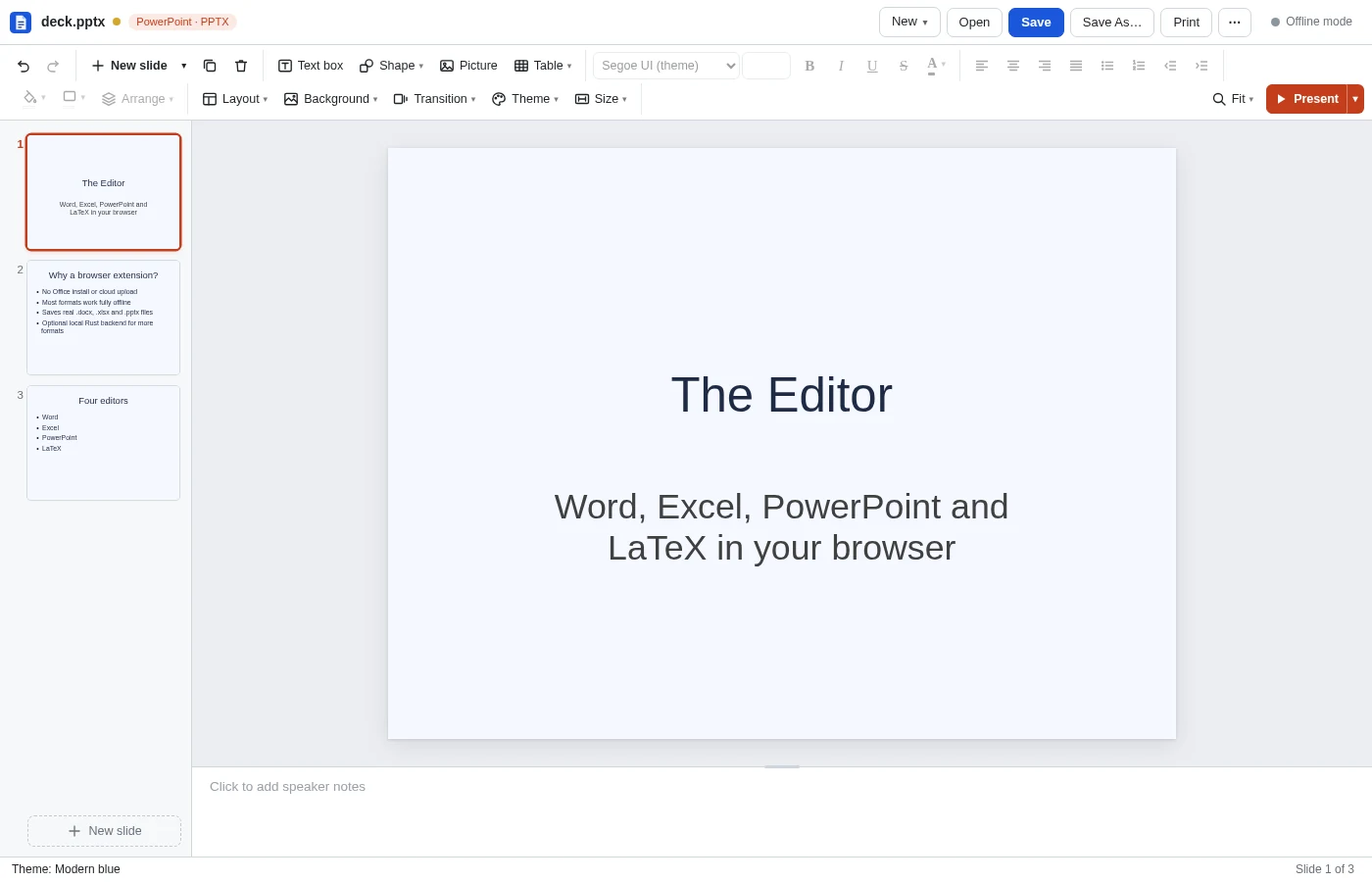
PowerPoint. .pptx opens and saves without the backend. You can drag slide thumbnails to reorder them, and use layouts, themes, text boxes, shapes, images, tables and speaker notes. Objects move, resize and rotate with snapping, and there are transitions and a full-screen slide show (F5). Besides .pptx, a deck can be saved as a self-contained .html slide show or as a Markdown outline.
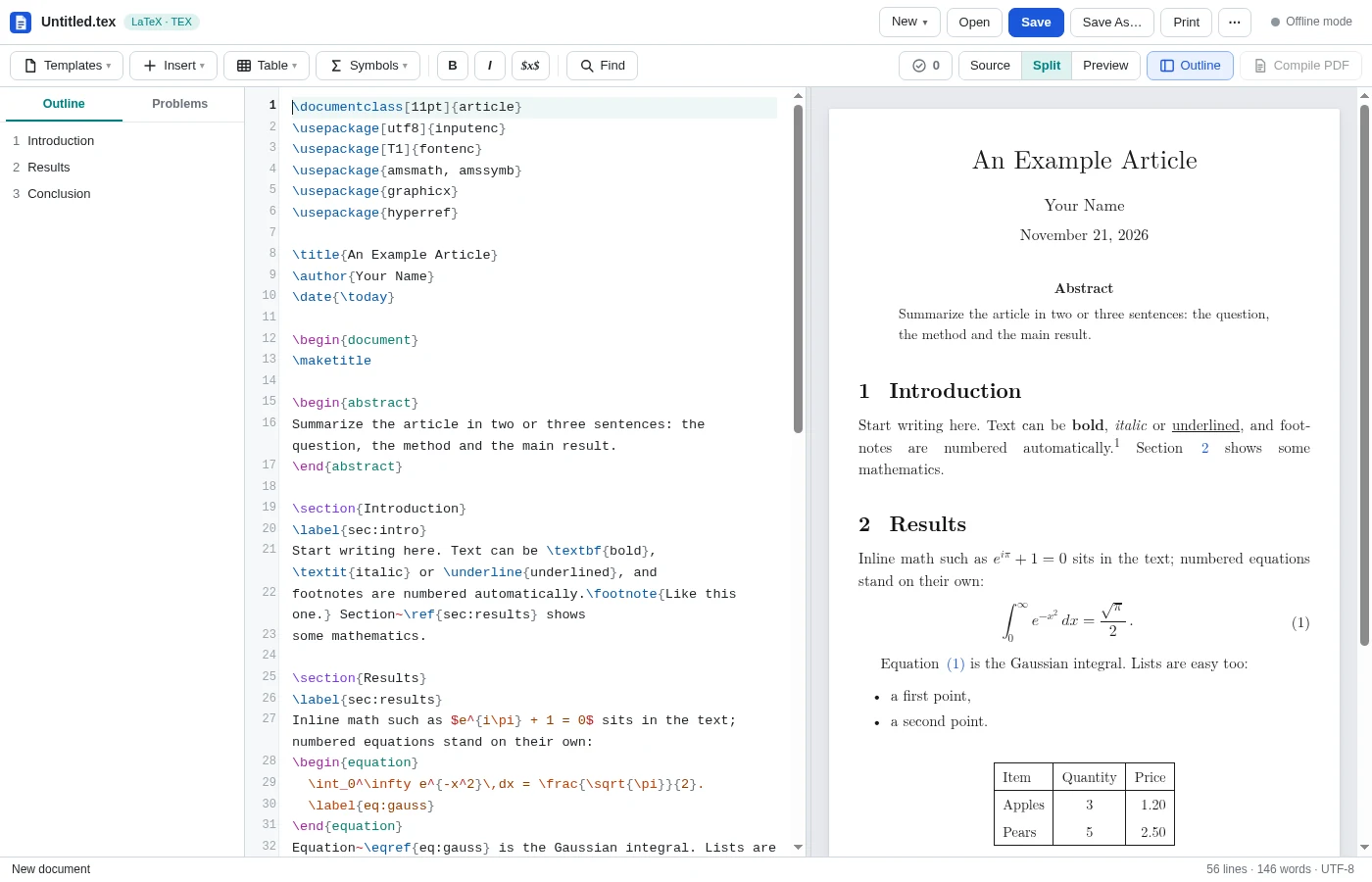
LaTeX. .tex files get syntax highlighting, line numbers, autocomplete, auto-closed environments and a live preview next to the source, with math rendered as MathML. There is also an outline, a problems list, snippets, a symbol palette and templates (article, report, letter, beamer, homework, CV). A .tex file can be converted to .docx, .html, .md or .txt. With the backend and TeX Live, MiKTeX or Tectonic installed, Compile PDF produces a real PDF. Without one, Print still gives you a PDF of the preview.
How you open files
The toolbar popup has New document, New spreadsheet, New presentation and New LaTeX document buttons, Open file…, Open from URL… and a list of the last 10 files you worked on. You can also drag or paste a file onto an editor tab.
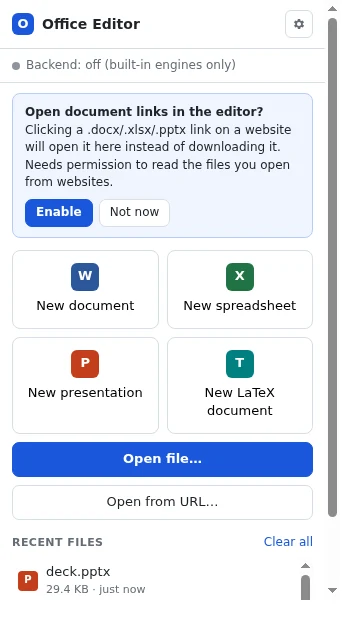
Files opened with Open file… are saved back to the same file through the File System Access API, so the edit–save loop feels like a desktop app. Files that came from the web are saved as downloads.
With web integration turned on, clicking a link to an Office document on a website opens it in the editor instead of downloading it. Right-clicking a document link adds an Open in Office Editor item.
Built to stay out of the way
- Web access is opt-in. The extension can't see any web page until you click Enable in the popup, which requests the optional
http://*/*andhttps://*/*permission. The link-handling script is only registered after that. - Only a plain left click is intercepted. Ctrl/Cmd/Shift-click, middle click, Alt-click and Save link as… behave as usual. If a page handles the click itself, the extension does nothing.
- It falls back to the browser. If a link turns out to be a sign-in page or an error rather than a document, the browser just navigates to it. A held download continues normally whenever the editor can't take the file, for example if it is larger than 100 MB.
- Text files are left alone by default. Opening
.md,.txt,.csv,.tsvand.texlinks is off by default, because links like a GitHubREADME.mdare web pages.
The optional backend
office-backend is a small Rust service that listens on 127.0.0.1:47831. It only accepts requests from the extension (other web pages get a 403), only listens on loopback and never stores files. LaTeX compiles run without shell escape, in a temporary folder, with a 60-second limit.
Start it with src/run-backend.bat on Windows or ./src/run-backend.sh on macOS and Linux. The script builds it the first time (this needs Rust from rustup.rs). Settings → Local backend → Test connection shows its version and which formats it can open and save.
| Format | Without backend | With backend |
|---|---|---|
.docx, .md, .txt | Open, edit, save | Same, with higher-fidelity .docx rendering |
.doc, .rtf, .odt | — | Open, edit, save as .docx/.rtf/.md/.html/.txt |
.xlsx, .xlsm, .xls, .ods, .csv, .tsv | Open, edit, save | Same, through the backend |
.pptx | Open, edit, save | Same, through the backend |
.tex | Edit, preview, convert | Same, plus .pdf with a TeX engine |
Some things aren't supported yet: tracked changes, comments, macros, pivot tables, legacy .ppt files, and PowerPoint charts, SmartArt and animations (these are shown as placeholders).
How it's built
The extension is Manifest V3, plain JavaScript and requires Chrome 116 or later. It has a service worker for downloads, link opens and the context menu, an offscreen document that fetches documents and stages them in browser storage (OPFS) for the editor tab, and one editor page that hosts the Word, Excel, PowerPoint and LaTeX views. Each format has its own document model and its own reader and writer for .docx, .xlsx and .pptx. SheetJS, docx-preview and JSZip are vendored unmodified. The backend is a Rust workspace with a module for each format.
CI runs the unit tests, the backend's cargo test, and end-to-end tests that drive the real extension UI in headless Edge with real mouse and keyboard input. Files saved by the Excel and PowerPoint tests are checked with openpyxl and python-pptx. Each run also builds a signed .crx and a .zip of the extension.
Trying it
- Open
chrome://extensions(oredge://extensions) and turn on Developer mode. - Click Load unpacked and select the
office-chrome-extension/folder from the repository. You can also download theoffice-editor-extension-*artifact from a CI run and load the unzipped folder. - Pin the extension, click its icon and create or open a document.
- Optional: start the backend for
.doc/.rtf/.odtand LaTeX-to-PDF.